Users
There are two types of users: administrators and non-administrators. Administrators can add and delete users, control other users' permissions, and modify report designs. Non-administrators may also modify report designs with permission from an administrator.
The program is shipped with one user, "admin." You may edit the password for this user, but you cannot delete the user.
Permissions
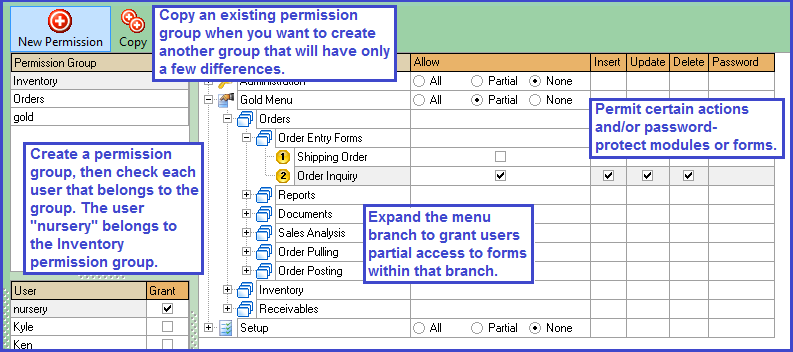
This form allows you to set specific permissions for non-admin users. You may set permissions by user, in which case you would give the permission group the same name as the user, or by a group of users, naming the group by department (e.g. "Orders").
Establish Permission Groups
- Go to Administration > Permissions.
- Click “New Permission.”
- In the dialog box, type the name of a new permission group.
- On the User table, include individual user(s) in the group by checking the box labeled "Grant."
- Assign group permissions:
- For unrestricted access to a module, select "All."
- For full restriction to a module, select "None." The module will not appear on the user's main menu.
- For partial access, check "Partial," then expand the module by clicking the plus (+) sign. Continue expanding topics until check boxes appear under the "Partial" column. Check each menu tree item that the user may access. Further delineate permissions with the "Insert," "Update," and "Delete" parameters to the right.
- (Optional) Enable password protection for any module or menu tree item by typing the password in the last column.
- Click “Save.”
Print Designs
Each time you save a new report design, the design ID is stored here. Visit this form whenever you'd like to clean up designs that you don't need any more. Though it's possible, we recommend that you don't create new designs here, as the "List" ID is an internal code that may not be easy to find. Instead, go to the report form that you'd like to create a new design for, copy and save the design, then modify in FastReport. See more specific instructions below for copying a report design.
Copy a Report Design
The CompuPlants package includes several Fast Report templates, providing you with professional, laser-quality reports and documents. You may use the templates as-is, or customize them by inserting your company logo, changing color schemes, adding and deleting components, and rearranging the layout.
Default report designs exist for Orders 5.6 and for every report form. When making modifications, we recommend copying the default design and saving a new design, rather than altering the template.
- Navigate to a form that requires you to select a report design, such as Inventory > Reports > Product Catalog > Product Catalog Information.
- Select a report design from the drop down menu.

- (Optional) If you wish to see the template before making changes, click "Design" in the toolbar—click in the main area, avoiding the arrow to the right. This brings up the original file in Fast Report. Do not make changes here.
* To see the print view, rather than the edit view, highlight an item on the grid below and click "Preview." - When you're ready to copy the design, click the small down arrow to the right of the Design button. The button expands into a list.
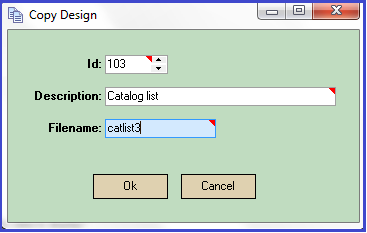
- Select "Copy Design."

- Enter a design ID, description, and file name.
-
* The application automatically suggests an ID by increasing the previous ID by one. The design ID is unique to the file name but not to the entire program. As a result, multiple report forms may list the same design ID though each design is different.
* The file name should be unique. You can add a sequence at the end to indicate it's a copy of the original: "catlist2", "catlist3", and so on.
- Click "OK." The newly saved file will open in Fast Report.
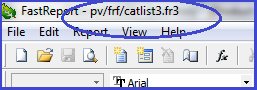
* You can verify the file name by looking in the upper left-hand corner.
- Modify the design as desired, save changes, and exit Fast Report.
-
* Do not exit Fast Report without saving. Even if you made no changes to the design, you must save it before exiting if you want to be able to access the duplicate design in the future.
- (Optional) Generate a report using the new design.
- Upon exiting the form, you'll receive a dialog asking if you want to upload the new file.
- Click "OK" and the file will be saved in Administration > Print Designs.
- Click "No" and the system will discard the file.